
Sysmon Configuration Checklist for Operational Security Teams
Default Sysmon settings log routine noise while ignoring the specific binary behaviors that indicate an active compromise, requiring manual tuning to surface true threats.
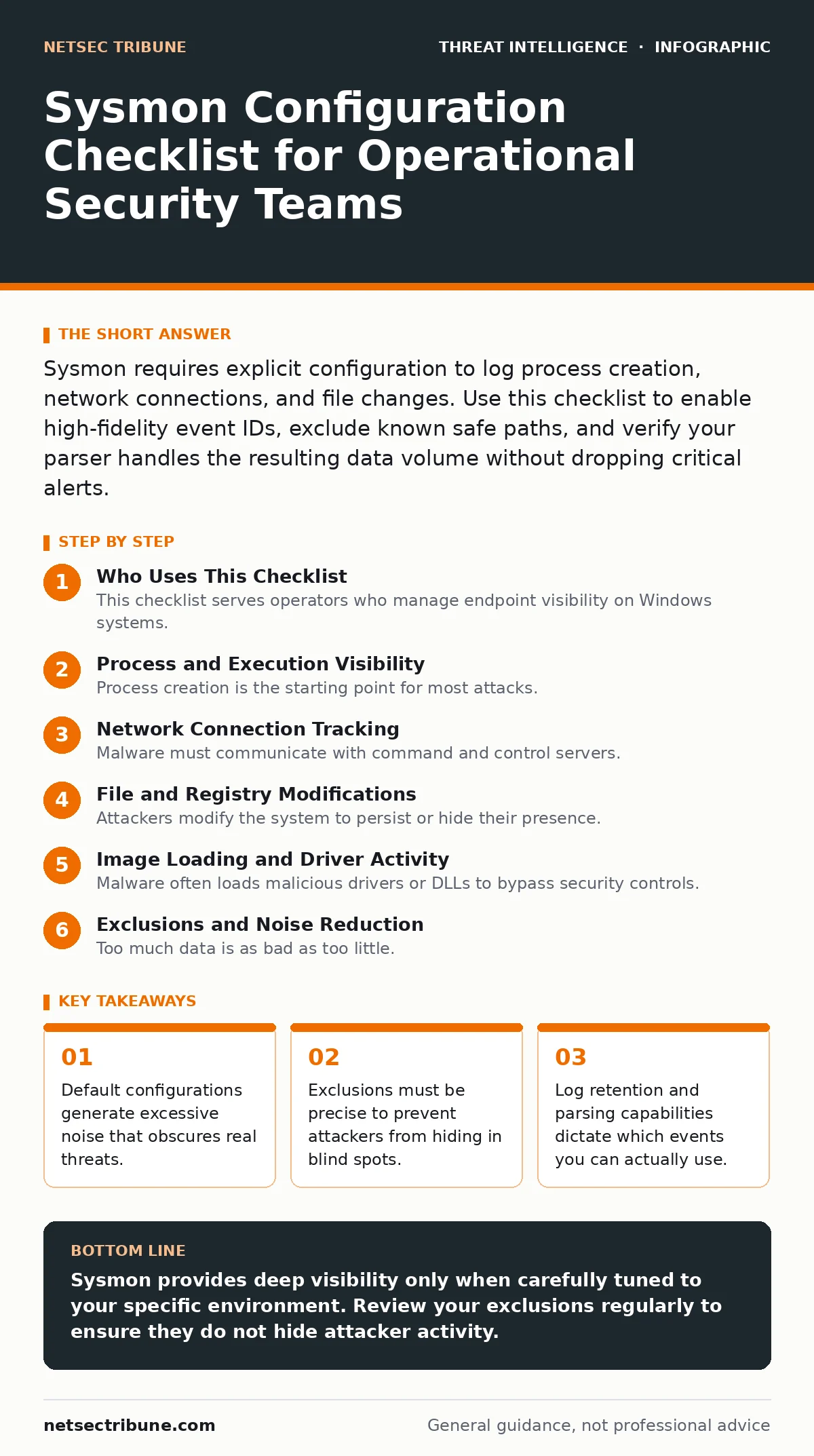
Sysmon requires explicit configuration to log process creation, network connections, and file changes. Use this checklist to enable high-fidelity event IDs, exclude known safe paths, and verify your parser handles the resulting data volume without dropping critical alerts.
Who Uses This Checklist
This checklist serves operators who manage endpoint visibility on Windows systems. You use it to verify that your Sysmon configuration captures the specific behaviors of modern malware rather than general system activity. Review these items before deploying to production or after major software updates.
Process and Execution Visibility
Process creation is the starting point for most attacks. You need to see who started what, where it came from, and if it dropped any files.
- Enable Event ID 1 for process creation: Captures the command line and parent process, revealing script-based attacks.
- Enable Event ID 3 for process access: Detects when one process reads the memory of another, a key step in credential theft.
- Enable Event ID 11 for file creation time set: Identifies attempts to backdate files to evade timeline analysis.
- Enable Event ID 12 for remote thread creation: Spots injection techniques where malicious code runs in a legitimate process.
Network Connection Tracking
Malware must communicate with command and control servers. Logging these connections helps you identify beaconing and data exfiltration.
- Enable Event ID 3 for network connections: Records source and destination IP addresses and ports for every connection.
- Enable Event ID 22 for DNS queries: Captures raw DNS lookups, which is vital for detecting domain generation algorithms used by botnets.
- Exclude trusted DNS resolvers: Reduces noise by filtering out queries to internal or known public DNS servers.
- Log connection state changes: Helps distinguish between successful connections and failed attempts, which may indicate scanning.
File and Registry Modifications
Attackers modify the system to persist or hide their presence. Tracking these changes reveals lateral movement and persistence mechanisms.
- Enable Event ID 11 for file creation: Logs new files created by processes, helping you find dropped payloads.
- Enable Event ID 12 for file deletion: Tracks removed files, which can indicate anti-forensics activity.
- Enable Event ID 13 for registry event creation: Detects new registry keys that establish persistence.
- Enable Event ID 14 for registry value set: Captures changes to existing keys, often used to modify system behavior.
Image Loading and Driver Activity
Malware often loads malicious drivers or DLLs to bypass security controls. Monitoring these loads reveals stealthy techniques.
- Enable Event ID 6 for process tampering: Detects when a process injects code or hooks API calls.
- Enable Event ID 7 for driver loading: Logs when kernel-mode drivers are loaded, a high-privilege action.
- Enable Event ID 8 for driver unloading: Tracks when drivers are removed, which may indicate cleanup.
- Exclude signed Microsoft drivers: Reduces noise by filtering out legitimate system drivers.
See also: Stop AS-REP Roasting: A Technical Prevention Checklist
Exclusions and Noise Reduction
Too much data is as bad as too little. You must exclude known safe activities to focus on anomalies.
- Exclude Windows Update processes: Prevents logging routine system updates that generate high volume.
- Exclude antivirus processes: Stops logging from your own security tools, which can cause feedback loops.
- Exclude known safe directories: Filters out activity in standard application folders unless modified.
- Exclude specific user accounts: Reduces noise from service accounts that perform routine maintenance.
Verification and Maintenance
A configuration is only as good as its enforcement. You must verify that logs are being generated and retained correctly.
- Verify log retention settings: Ensure your system keeps logs long enough for retrospective analysis.
- Check SIEM parsing rules: Confirm your log management tool can parse Sysmon fields correctly.
- Test with known benign tools: Run standard utilities to ensure they are not triggering false positives.
- Review exclusions quarterly: Update exclusions as new software is installed or decommissioned.
Integration with Other Tools
Sysmon works best when combined with other data sources. Correlating endpoint data with network traffic provides a fuller picture.
- Correlate with packet capture analysis: Combine endpoint logs with network data to verify external communications.
- Integrate with threat intelligence feeds: Enrich logs with external indicators to identify known malicious IPs.
- Use for purple teaming exercises: Validate your configuration by simulating attacks like pass-the-hash attacks.
- Monitor for LSASS credential theft: Look for specific process access patterns that indicate memory dumping.
Final Review Steps
Before closing your configuration, perform a final check. Ensure that all critical event IDs are enabled and that your exclusions are tight. Document your configuration for future reference.
Key takeaways
- Default configurations generate excessive noise that obscures real threats.
- Exclusions must be precise to prevent attackers from hiding in blind spots.
- Log retention and parsing capabilities dictate which events you can actually use.
Sysmon provides deep visibility only when carefully tuned to your specific environment. Review your exclusions regularly to ensure they do not hide attacker activity.
Frequently asked questions
How do I know if Sysmon is running?
Check the Windows Event Viewer for the Sysmon Operational log. If it exists and has entries, the service is active.
Can Sysmon detect all malware?
No. It only logs events you configure. If an event ID is disabled, Sysmon will not see that activity.
Does Sysmon slow down the system?
It adds overhead proportional to the number of events logged. Excessive logging without exclusions can impact performance.
How often should I update my configuration?
Update it whenever new software is deployed or when threat intelligence indicates new tactics.
How this guide was produced: written by the NetSec Tribune editorial team with AI assistance, checked against the public references listed below, and reviewed when the facts change. See our editorial policy or report an error.